How to Make Bingo Cards in Word (Step by Step)
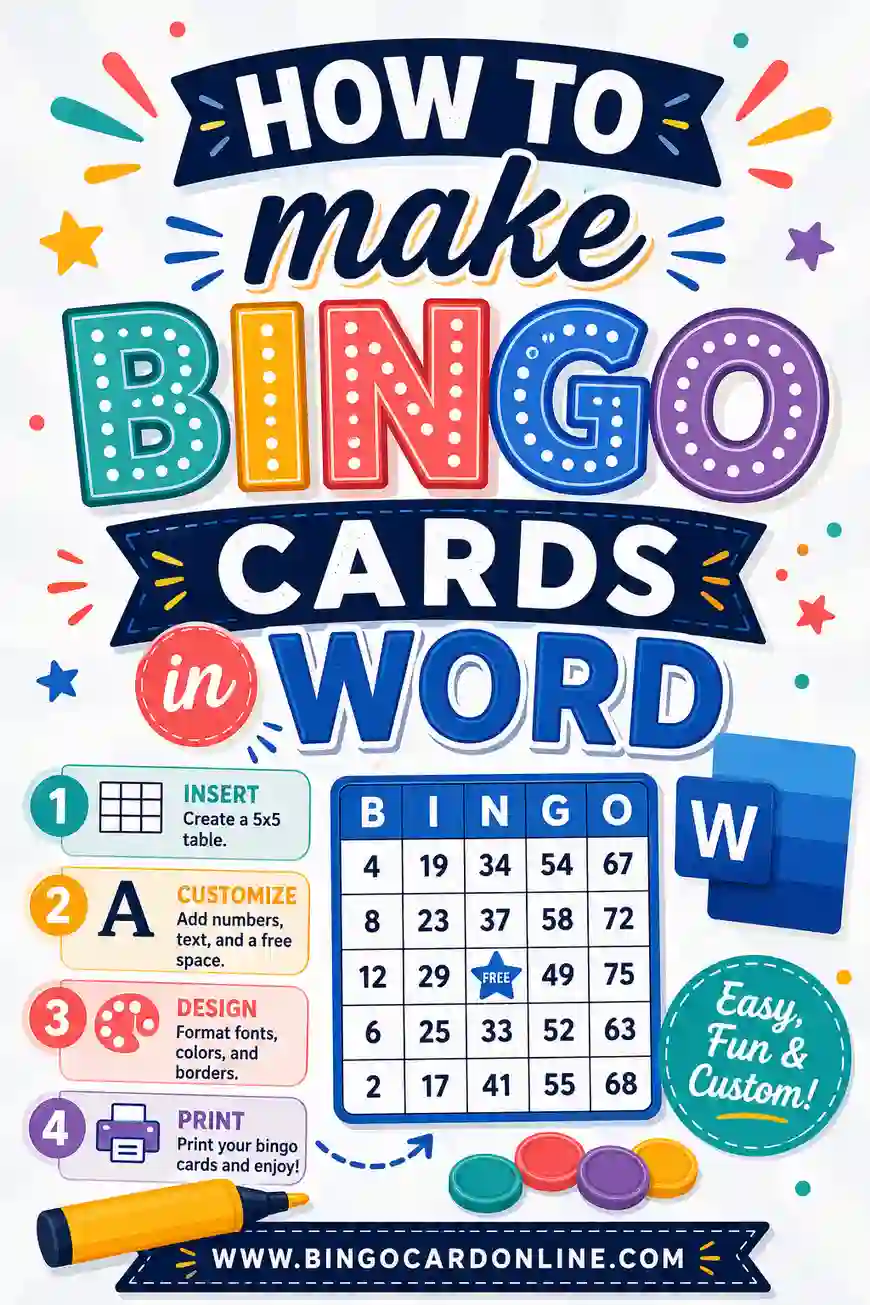
To make bingo cards in Word, insert a 5x5 table, type one bingo square into each cell, center the text, and adjust the row height so every box is the same size. That gives you one clean card you can print. The catch: Word makes the same card every time, so to get unique cards for a group you either copy and reshuffle by hand or use a free bingo card generator that scrambles your list into different cards automatically.
Short on time? Open the free generator, paste in a word list, and print a stack of unique cards in minutes. But if you want to build one in Word yourself, the full walkthrough is below.
Why People Make Bingo Cards in Word
Word is already on most computers, and almost everyone knows the basics. So when someone needs a bingo card fast, Word feels like the obvious tool. And for a single card, it works great.
The trouble starts when you need more than one. Bingo only works if every player has a different card. If two people share a layout, they both win at the same time and the game falls apart. Word has no built-in way to shuffle squares, so making 20 unique cards by hand is slow and easy to mess up.
That's worth knowing up front. Word is perfect for designing one card or a printable template. For a full set, you'll want a faster route, which we'll cover at the end.
What You'll Need Before You Start
Nothing fancy. Just have these ready:
- A list of at least 24 bingo words (25 cells minus one free space for a 5x5 grid).
- Any recent version of Word, including Word Online (the free browser version).
- A printer, or a PDF export if you're printing elsewhere.
If you don't have a word list yet, grab the one further down this page. It's free to copy.
How to Make a Bingo Card in Word: Step by Step
Here's the whole process from blank page to printed card. It takes about ten minutes the first time.
Step 1: Open a new document and add a title
Start a fresh document. Type a heading at the top like "Bingo" or "Holiday Bingo," center it, and bump the font size up to 28 or so. Press Enter a couple of times to leave room below.
Step 2: Insert a 5x5 table
Go to the Insert tab, click Table, and drag to select a 5-by-5 grid (5 columns, 5 rows). That's the classic bingo size with 25 squares. For younger kids, use a 3x3 table instead. For a quicker game, try 4x4.
Step 3: Make the squares even
Right now your table is short and wide. Select the whole table by clicking the small handle in its top-left corner. Then:
- Open the Layout tab (it appears when the table is selected).
- Set a fixed row height, around 1.1 inches, so the boxes are tall.
- Click Distribute Rows and Distribute Columns so every cell is identical.
You want squares, not skinny rectangles. Even sizing is what makes it look like a real bingo card.
Step 4: Type your words
Click into each cell and type one bingo word. For a 5x5 card, fill 24 cells and leave the center cell for your free space. Type "FREE" in the middle, or drop in a small image if you like.
Step 5: Center everything
Select the whole table again. On the Home tab, click center-align. Then in the Layout tab, click "Align Center" so text sits in the middle of each box both ways. This small step makes the card look polished instead of lopsided.
Step 6: Style it (optional)
Want it to pop? Bold the words, pick a fun font, or add light shading to the free space. Keep it readable, though. Thin script fonts look pretty but are hard to scan during a fast game.
Step 7: Print or save
Hit Print, or go to File > Save As and choose PDF if you're printing somewhere else. Print one test card first to check your margins before running a full batch.
The Big Catch: Word Makes Identical Cards
Here's the part nobody warns you about. The card you just built is one layout. If you print 12 copies, all 12 players have the exact same grid, so they'll all get bingo on the same call.
To fix this in Word, you'd have to copy your card onto new pages and manually move words around on each one. For four players, that's tedious. For a classroom of 25, it's a nightmare. People usually give up halfway and settle for a few near-identical cards, which makes the game less fun.
That's the whole reason bingo generators exist. They take your single word list and shuffle it into a different layout for every card, instantly.
Free Bingo Word List (Copy & Paste)
Here's a ready-to-use list of 30 general-purpose bingo squares. Pick any 24 for a 5x5 card, or grab 9 for a 3x3. Copy a column straight into your Word table or into the generator.
| Everyday Things | Around Town | Fun & Games |
|---|---|---|
| Coffee cup | Library | Board game |
| Umbrella | Mailbox | Jigsaw puzzle |
| Backpack | Bus stop | Playing cards |
| House keys | Park bench | Beach ball |
| Sunglasses | Traffic light | Kite |
| Notebook | Fire hydrant | Yo-yo |
| Alarm clock | Crosswalk | Dice |
| Water bottle | Bakery | Frisbee |
| Houseplant | Pharmacy | Skateboard |
| Headphones | Gas station | Bicycle |
Mix words across columns for variety. If you're playing with younger kids, lean on words that are easy to picture, like umbrella, kite, and bicycle.
How to Make Several Cards in Word (the Manual Way)
If you only need a few cards and you're set on using Word, here's the least painful method:
- Build your first card using the steps above.
- Copy the whole table and paste it onto a new page.
- Rearrange the words by cutting and pasting between cells so the layout differs. Aim to move at least half the squares.
- Repeat for each player.
It works, but be honest about the effort. Every card needs real shuffling, and it's easy to accidentally leave two cards too similar. Always have more than 24 words in your pool so there's room to vary the grids.
A Faster Way to Make Unique Cards
If you need more than two or three cards, skip the manual shuffling. A free bingo card generator does the hard part for you:
- Paste in your word list once.
- Choose your grid size (3x3, 4x4, or 5x5).
- Pick how many cards you want.
- Print. Every card comes out with a different layout.
You still get the printable result, just without the copy-paste grind. Many people design the look they want in Word, then use the generator to crank out the unique copies. Best of both worlds.
Printing Tips for Clean Cards
However you make them, a few small choices help:
- Print a test card first. Check that no squares get cut off at the page edge.
- Use cardstock for reuse. It survives more game nights than thin paper.
- Black and white saves ink. Bingo cards read fine without color.
- Use sleeves or laminate so players can mark with dry-erase markers and you can wipe the cards clean.
- Bigger squares for little hands. A 3x3 or 4x4 grid gives kids more room per box.
Bingo Grid Sizes by Age
The right grid depends on who's playing. Here's a quick guide.
| Age group | Grid size | Tips |
|---|---|---|
| Toddlers (2–4) | 3x3 | Use pictures, not words. Keep rounds short. |
| Kids (5–9) | 4x4 | Mix simple words and pictures. Offer small prizes. |
| Tweens & teens | 5x5 | Add pop-culture or themed squares. |
| Adults | 5x5 | Try blackout rounds for a longer game. |
| Seniors | 4x4 | Larger print, fewer squares, clear fonts. |
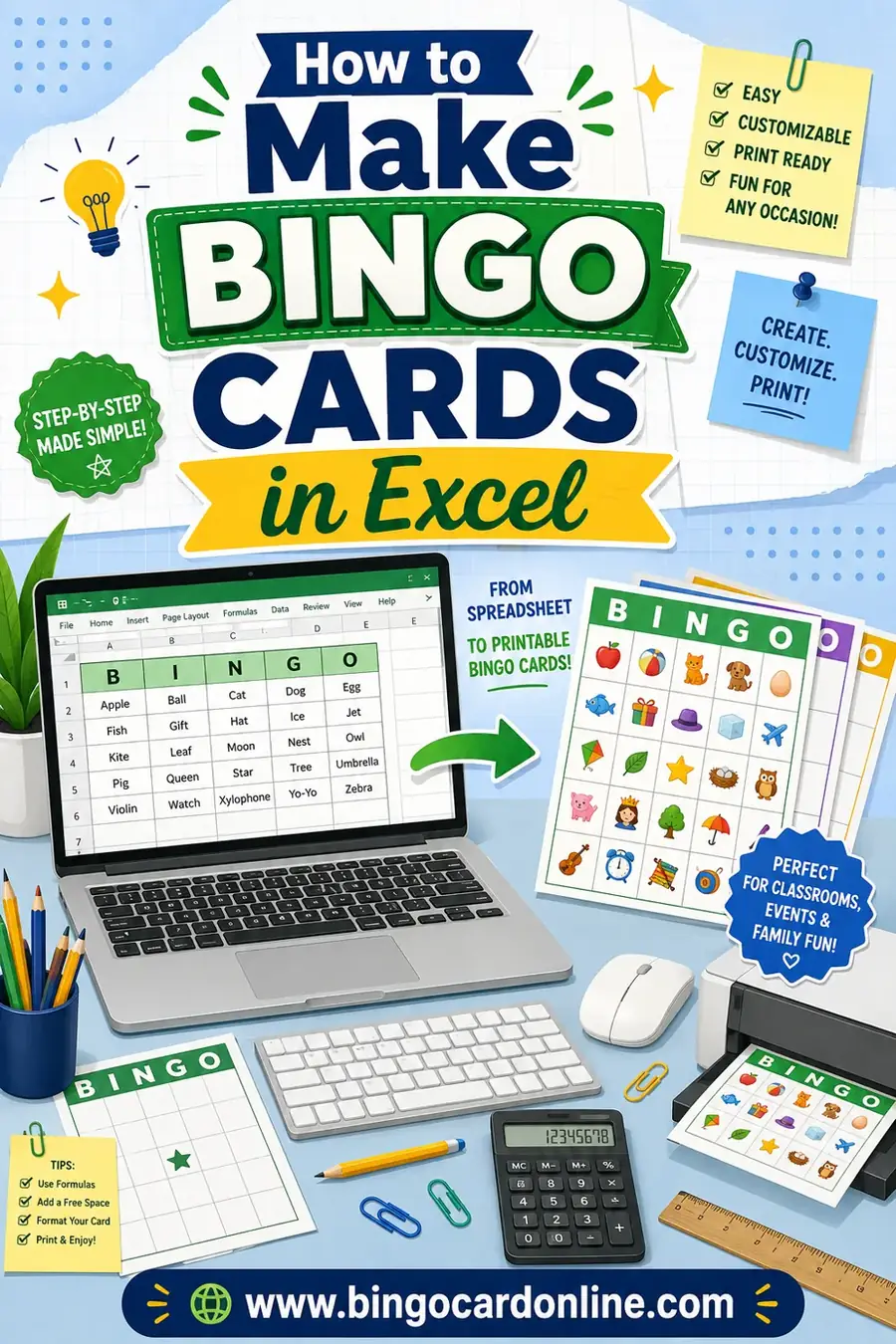
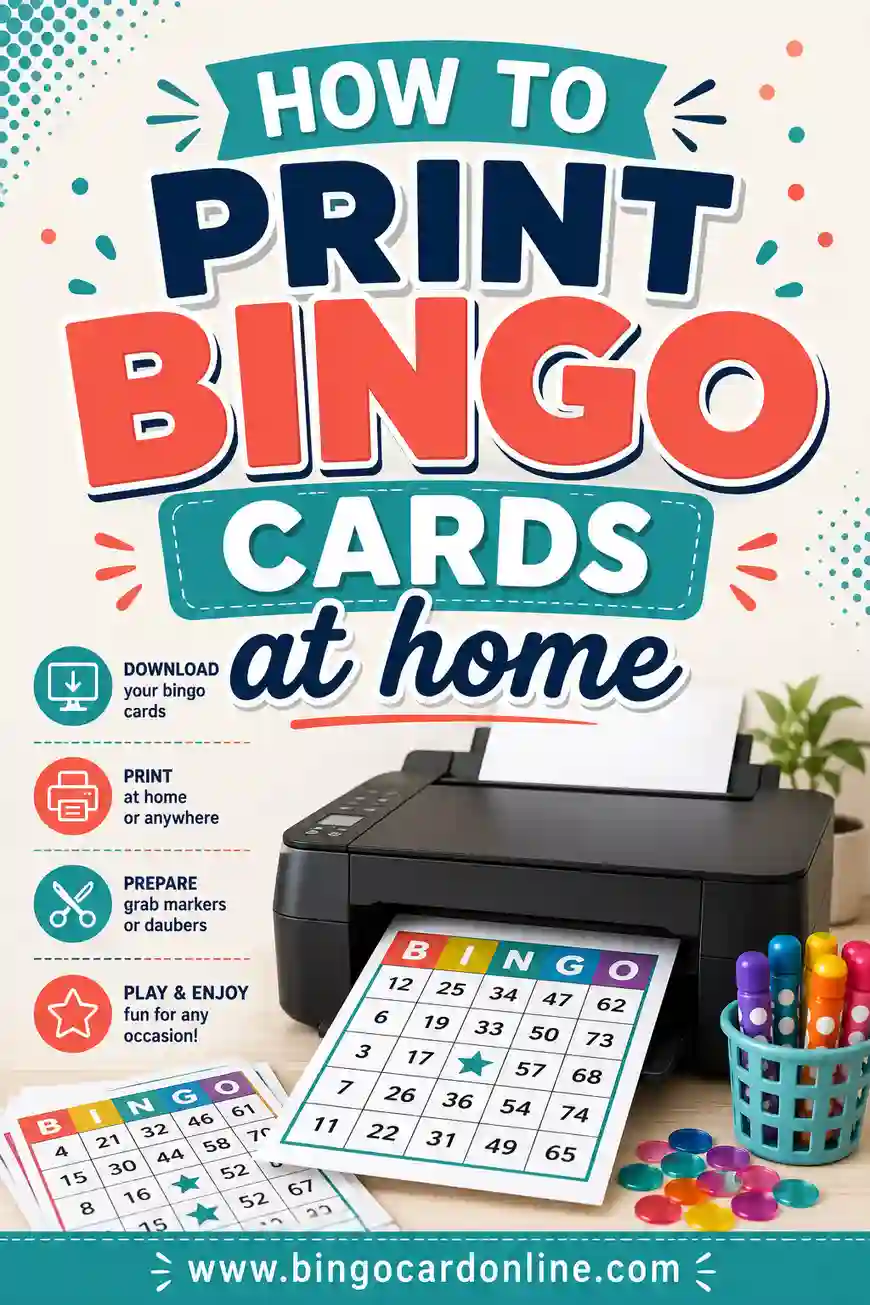
Want a different approach? You can also build cards in Excel, learn the best way to print bingo cards at home, or see exactly how to make unique non-duplicate cards for a big group.
Frequently Asked Questions
Can I make bingo cards in Word for free?
Yes. Word's table feature lets you build a card at no cost, and Word Online is free to use in any browser. The only real limit is that Word can't shuffle squares, so making lots of unique cards takes manual work or a free generator.
What size table should I use for a bingo card?
Use a 5x5 table for the classic card with 25 squares and a free space in the middle. For younger kids, use 3x3, or 4x4 for a faster game. Set a fixed row height and distribute rows and columns so the boxes are even.
How do I make the bingo squares even in Word?
Select the whole table, open the Layout tab, set a fixed row height (about 1.1 inches), then click Distribute Rows and Distribute Columns. This makes every cell the same size so it looks like a proper bingo card.
How do I make many different cards in Word?
You'd copy your card onto new pages and rearrange the words by hand for each one. It works for a few cards but gets slow fast. For a whole group, a free bingo card generator shuffles your list into unique cards in seconds.
Can I add pictures instead of words?
Yes. Click inside a cell, go to Insert > Pictures, and drop in a small image. Picture squares are great for toddlers and non-readers. Just keep the images simple and clear so they're easy to spot during play.
Can I save my Word bingo card as a PDF?
Yes. Go to File > Save As (or Export) and choose PDF. This keeps your layout locked so it prints the same on any computer, which is handy if you're printing at a copy shop or sharing the file.
Ready to Make Your Bingo Cards?
Word is great for designing one card, but if you need a whole stack of unique ones, let the free bingo card generator do the shuffling for you. Paste your list, pick a grid size, and print as many different cards as you need. No sign-up, no fee, and every card comes out different, so your game is ready to play.