How to Print Bingo Cards at Home (Easy Guide)
To print bingo cards at home, generate or design your cards, save them as a PDF, load your printer with regular paper or cardstock, and print one test card to check the margins before running the full batch. Use "fit to page" so nothing gets cut off, and print in black and white to save ink. The fastest way to get printable cards is a free bingo card generator that makes unique cards you can send straight to your printer.
Ready to print? Open the free generator, paste a word list, pick your grid size, and you'll have print-ready cards in minutes. The full at-home printing guide is below.
Can You Print Good Bingo Cards at Home?
Absolutely. You don't need a print shop or fancy equipment. Any home inkjet or laser printer makes clean, playable bingo cards. The trick is a few simple settings and the right paper, which we'll walk through.
Home printing also saves money and time. No driving to a copy shop, no waiting, no per-page fees. You can go from "we need bingo tonight" to a printed stack in about ten minutes.
The only thing to get right is the prep. A couple of small choices, like checking your margins and picking the right paper, make the difference between crisp cards and a frustrating reprint.
What You'll Need
Gather these before you start:
- Your bingo cards as a PDF (a generator or Word/Excel export works).
- Paper or cardstock. Plain paper is fine; cardstock lasts longer.
- A home printer with enough ink or toner.
- Optional: laminating sheets or clear sleeves if you want to reuse the cards.
That's it. Nothing you don't already have or can't grab cheaply.
How to Print Bingo Cards at Home: Step by Step
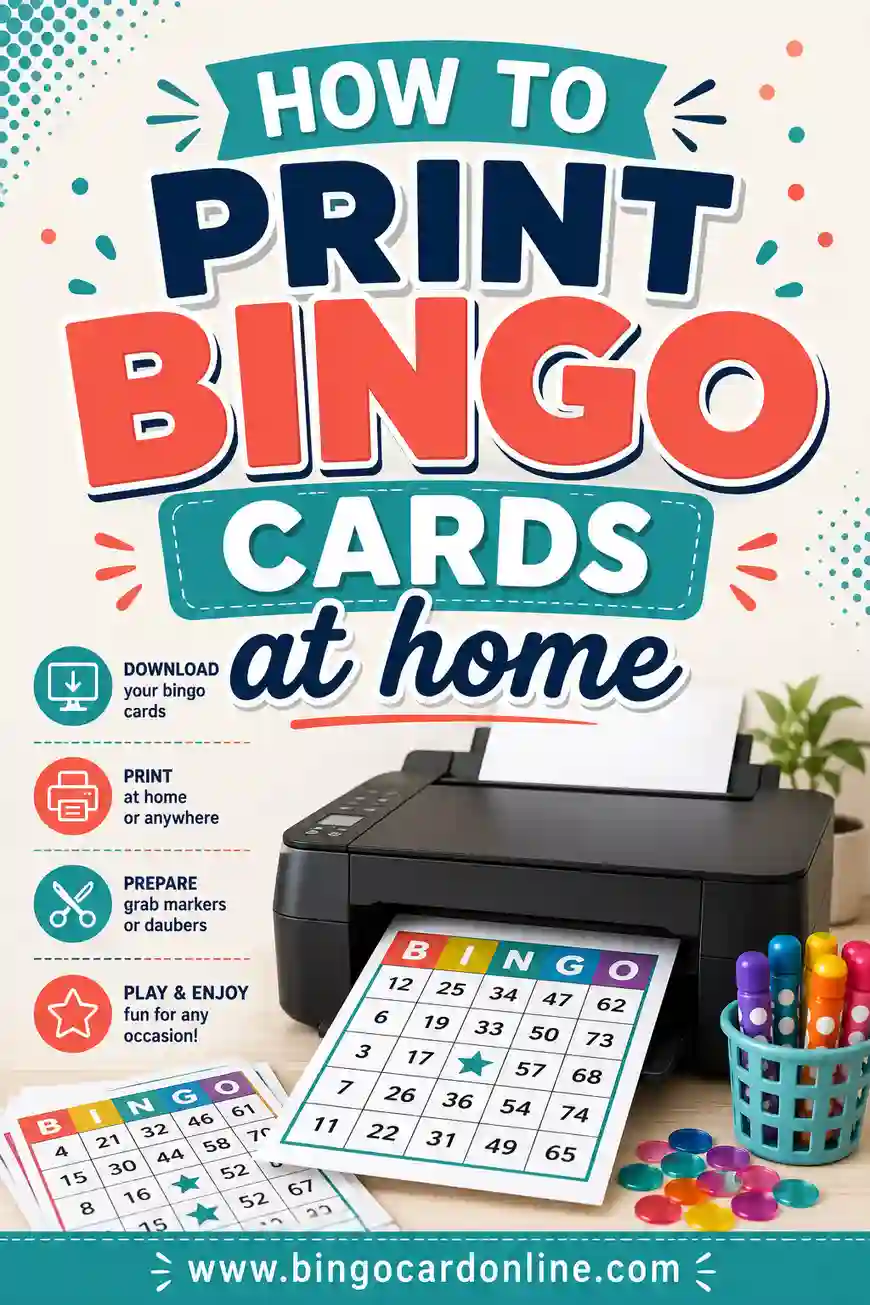
Here's the whole process, start to finish.
Step 1: Get your cards ready
First, make your cards. Use a free bingo card generator for unique cards, or build them in Word or Excel. Save the finished set as a PDF so the layout stays locked no matter which computer prints it.
Step 2: Load your paper
Pop your paper into the tray. For a quick game, plain printer paper is fine. For cards you'll reuse, load cardstock instead (more on paper choices below). Make sure the tray guides hug the paper so it feeds straight.
Step 3: Open print settings
Open the PDF and hit Print. Before you click the final button, check these settings:
- Scaling: "Fit to page" so the grid doesn't get cut off at the edges.
- Orientation: portrait for a single card per page, or landscape if your card is wide.
- Color or black and white: black and white saves ink and reads perfectly fine.
- Quality: "normal" is plenty for bingo. "Best" wastes ink.
Step 4: Print one test card
This is the step people skip and regret. Print just the first card. Check that:
- No squares are cut off at the edges.
- The text is centered and readable.
- The card fills the page nicely, not tiny in one corner.
If anything's off, adjust your scaling or margins and test again. Two minutes here saves a wasted stack.
Step 5: Print the full set
Once the test looks good, print the rest. If you've got a big group, print a few extra cards for latecomers or damaged ones. Then you're ready to play.
Best Paper for Printing Bingo Cards
Paper choice depends on how you'll use the cards.
| Paper type | Best for | Notes |
|---|---|---|
| Plain printer paper | One-time games | Cheapest, fine for casual play |
| Cardstock (65–110 lb) | Reusable cards | Sturdier, feels nicer, survives many games |
| Photo paper | Picture-heavy cards | Crisp images, pricier, overkill for words |
| Laminated cardstock | Dry-erase reuse | Wipe clean and play again for years |
For most people, plain paper for one-offs and cardstock for anything you'll reuse is the sweet spot. You rarely need photo paper unless your cards are full of detailed images.
Ink-Saving Tips
Printing a class set can eat ink fast. Keep costs down with these:
- Print in black and white. Color adds nothing to word-based bingo.
- Use "draft" or "normal" quality. Bingo cards don't need photo-level detail.
- Skip heavy backgrounds. Solid colored borders drink ink. Thin lines do the job.
- Let kids color the cards. Print plain and turn coloring into a bonus activity, saving color ink entirely.
These small changes can stretch a cartridge across several game nights instead of one.
Fixing Common Printing Problems
Run into trouble? Here are quick fixes for the usual suspects.
Squares are cut off at the edges
Your card is bigger than the printable area. Set scaling to "Fit to page" or "Shrink oversized pages," then reprint a test card. Most home printers can't print all the way to the paper edge, so a small margin is normal.
The card prints tiny in one corner
Scaling is set too small, or the page size is wrong. Switch scaling to "Fit to page" and confirm the paper size matches your tray (usually Letter or A4).
Text looks blurry or faded
Low on ink, or quality is set too low. Bump quality up a notch, run a printer cleaning cycle, or replace the cartridge. For laser printers, a faded print usually means the toner is running out.
Grid lines won't print
Some programs hide table borders by default. In Word or Excel, make sure "All Borders" is applied before you export to PDF. In a generator, this is handled for you.
Free Bingo Word List (Copy & Paste)
Here's a ready-to-use list of 30 general bingo squares to print. Pick any 24 for a 5x5 card or 9 for a 3x3.
| Animals | Sports | At Home |
|---|---|---|
| Penguin | Soccer ball | Couch |
| Elephant | Basketball | Lamp |
| Dolphin | Tennis racket | Toaster |
| Giraffe | Baseball bat | Pillow |
| Kangaroo | Hockey stick | Blanket |
| Owl | Golf club | Clock |
| Turtle | Volleyball | Mirror |
| Fox | Bowling pin | Bookshelf |
| Rabbit | Whistle | Teapot |
| Hedgehog | Jump rope | Doormat |
Mix the columns for variety. For little kids, lean on easy-to-picture words like penguin, soccer ball, and lamp.
Making Your Cards Reusable
Want to play again and again without reprinting? Two easy methods:
- Laminate them. A laminating machine seals each card in plastic. Players mark squares with dry-erase markers and you wipe them clean afterward.
- Use clear sleeves. No machine needed. Slide each card into a sheet protector or page sleeve. Same dry-erase trick, lower cost.
Either way, print on cardstock first so the cards feel solid inside the plastic. A reusable set pays for itself fast if you play often, like in a classroom.
What to Use as Markers
You don't need official bingo chips. Grab whatever's handy:
- Dried beans, buttons, or coins
- Mini candies or chocolate chips (edible markers are a kid favorite)
- A pen or crayon to cross off squares
- Dry-erase markers for laminated or sleeved cards
- Bingo daubers, if you happen to have them
Bingo Grid Sizes by Age
Print the right grid for your players and the game runs smoother.
| Age group | Grid size | Tips |
|---|---|---|
| Toddlers (2–4) | 3x3 | Use pictures, not words. Bigger squares. |
| Kids (5–9) | 4x4 | Mix simple words and pictures. Small prizes. |
| Tweens & teens | 5x5 | Add themed or pop-culture squares. |
| Adults | 5x5 | Try blackout rounds for longer play. |
| Seniors | 4x4 | Larger print, fewer squares, clear fonts. |
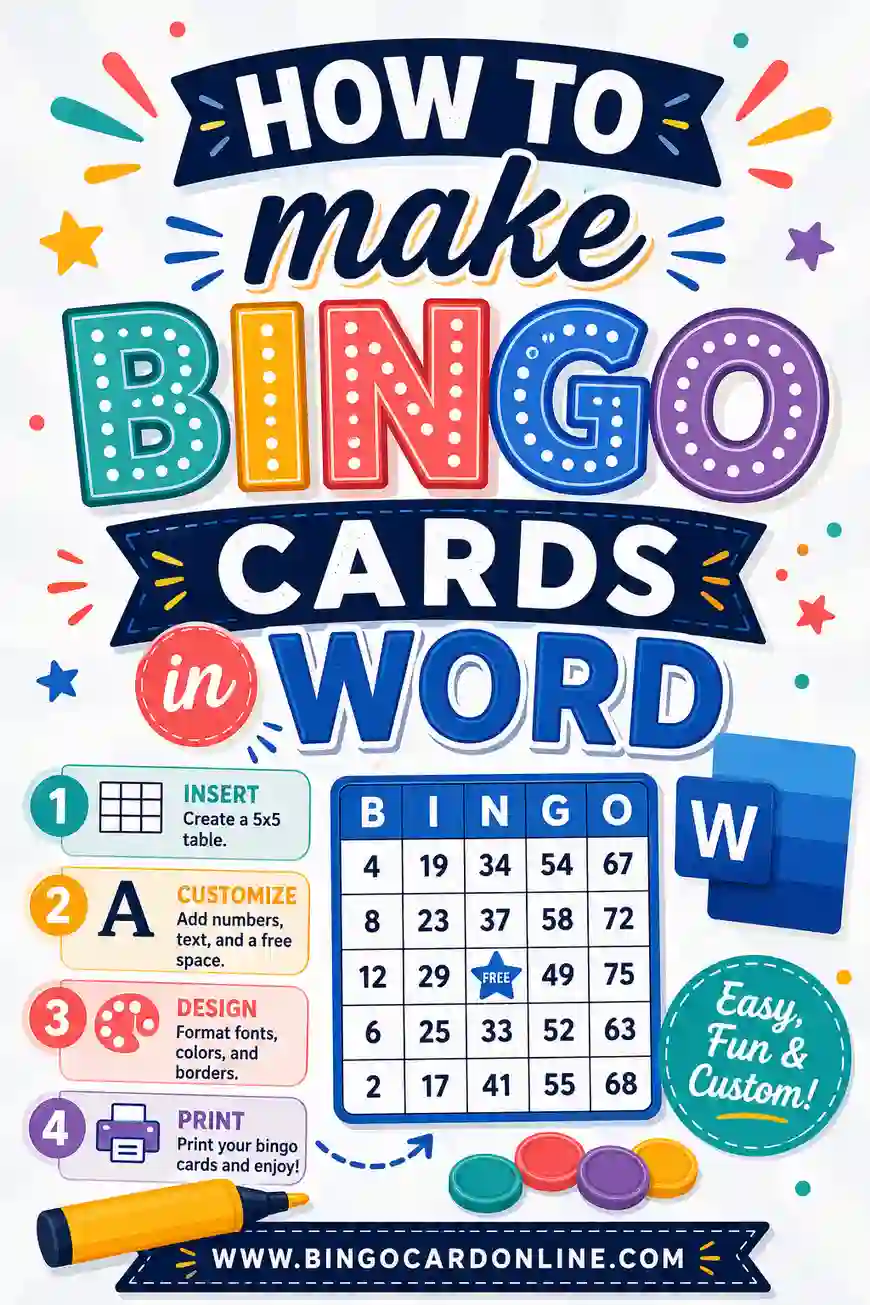
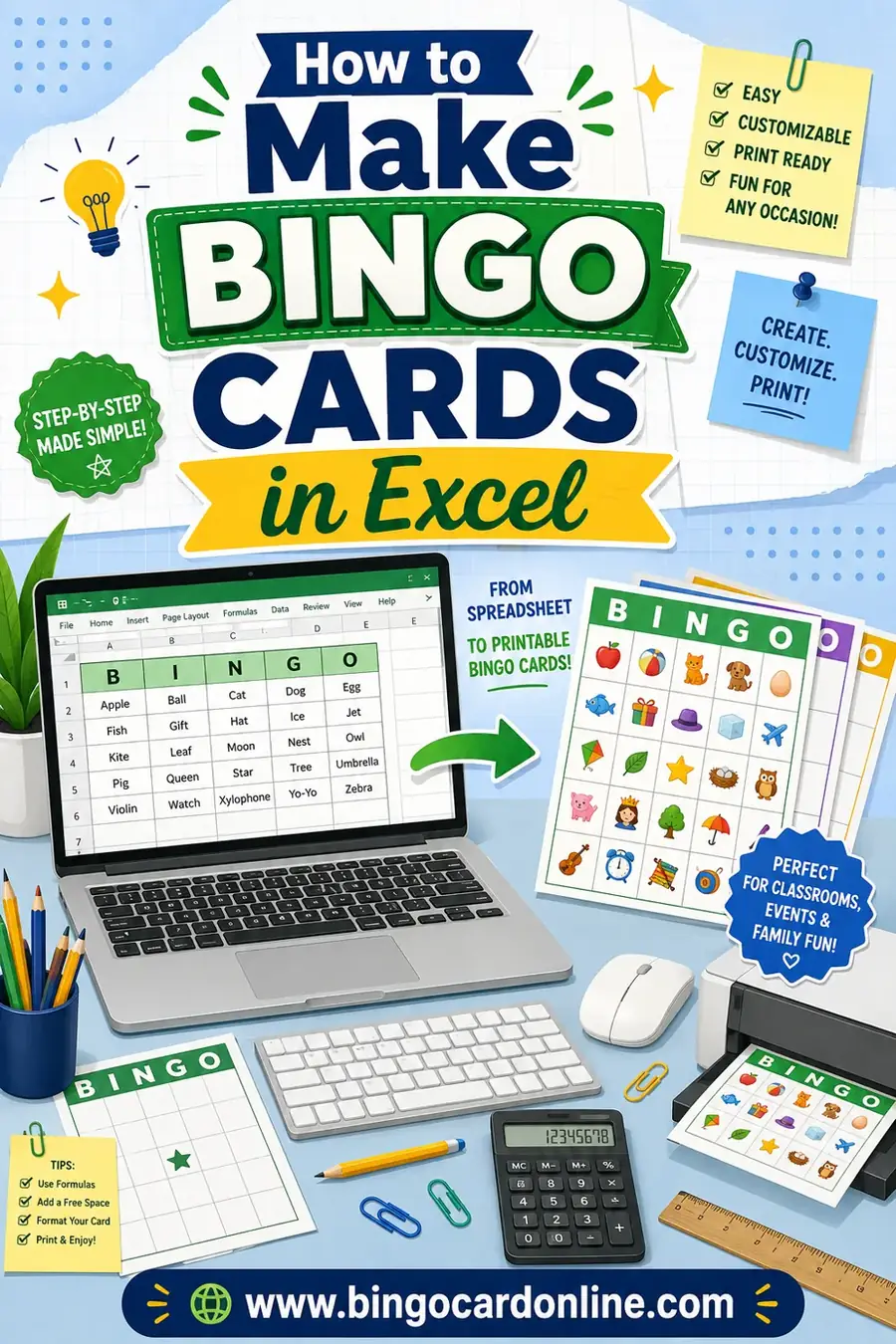
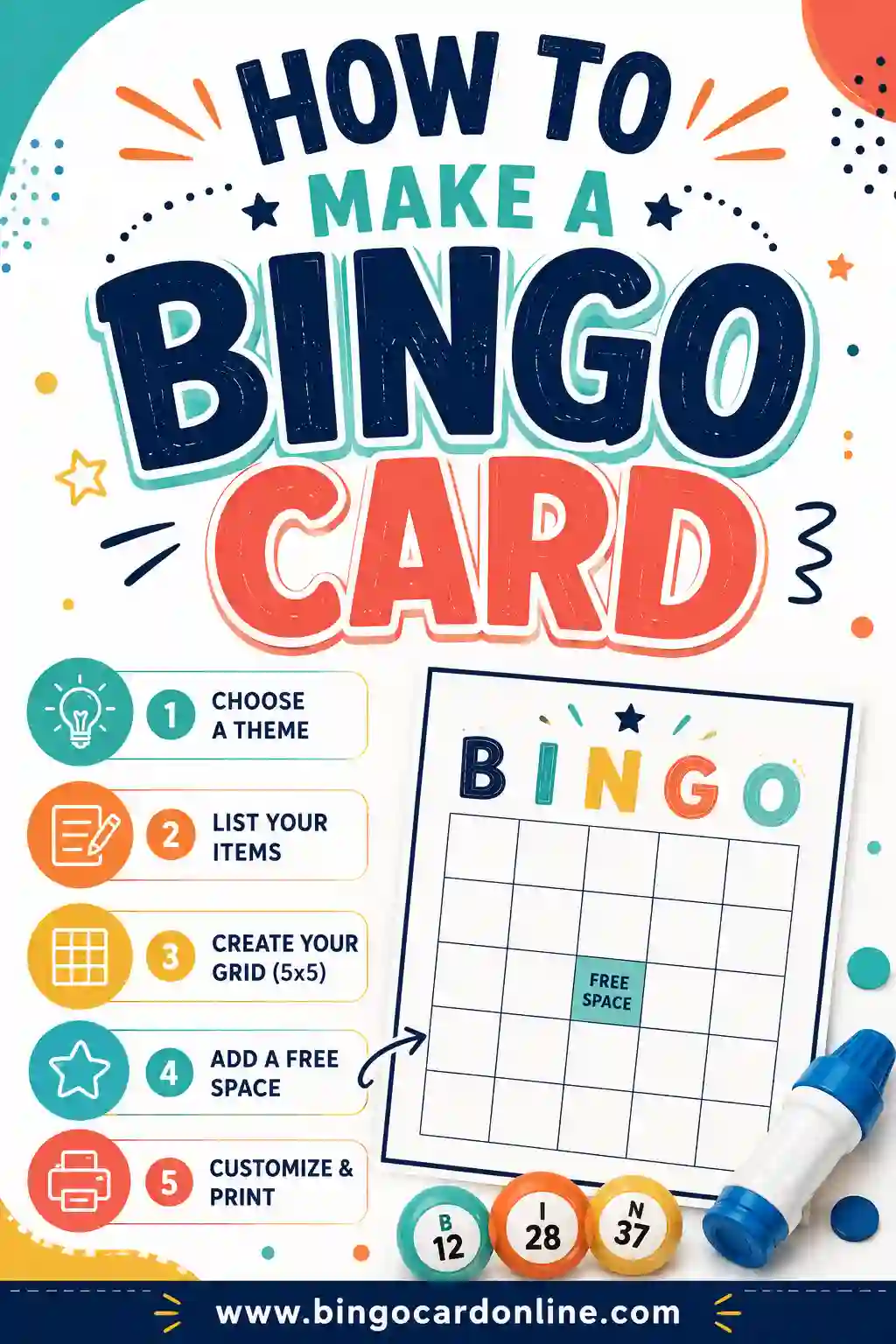
Need help making the cards before you print? You can build them in Word or Excel, or make sure you've got unique, non-duplicate cards for everyone.
How Many Cards Fit on One Page
A little planning here saves a lot of paper and ink. The number of cards you can fit per sheet depends on your grid size and how big you want the squares.
- One card per page. The default and the easiest to read. A full 5x5 card fills a standard Letter or A4 sheet with roomy squares that are easy to mark. Best for adults, seniors, and anyone playing with daubers.
- Two cards per page. Many generators and print menus let you print two cards on one sheet, then cut them apart. This halves your paper use and works fine for 3x3 and 4x4 grids.
- Four cards per page. Doable for small 3x3 cards, but the squares get tight. Good for a quick kids' game where you're not worried about reusing the cards.
If you're printing a big class set, two-per-page is the sweet spot: you save half your paper, the cards stay readable, and a paper cutter slices the stack apart in seconds. Print one test sheet first to make sure the squares aren't too small for your players to mark comfortably.
Single vs. double-sided printing
For most bingo games, print single-sided. You want the playing surface flat and clear, and a blank back makes it easy to stack and hand out cards.
Double-sided printing has one nice use: putting two different cards on the front and back of one sheet so each player gets two games out of a single page. Just make sure your printer's alignment is good, or the cards can end up off-center. Run a test before committing to a full batch.
Printing Bingo Cards Without a Printer at Home
No printer? You've still got easy options.
- Local print shop or library. Save your cards as a PDF on a USB drive or email them to yourself, then print at a library, office-supply store, or copy shop. Most charge just a few cents per black-and-white page.
- Print from your phone. If you've got a wireless printer at a friend's place or office, you can usually print a PDF straight from your phone using AirPrint (iPhone) or the built-in print option on Android.
- Play on screen. For a casual or virtual game, players can pull up their card on a tablet or laptop and mark squares with a stylus or a notes app. No paper at all.
The PDF is the key in every case. Once your cards are saved as a PDF, the layout stays locked and you can print them anywhere, on any printer, without the squares shifting around.
Frequently Asked Questions
What's the best paper for printing bingo cards at home?
Plain printer paper works for one-time games. For cards you'll reuse, use cardstock (65–110 lb), which is sturdier and feels nicer. Laminate the cardstock or use clear sleeves if you want players to mark and wipe the cards again and again.
Why are my bingo cards getting cut off when I print?
Your card is larger than the printer's printable area. Set scaling to "Fit to page" in the print menu and reprint a test card. Home printers can't print to the very edge, so a small white margin around the card is normal and expected.
How do I save ink printing bingo cards?
Print in black and white, use "normal" or "draft" quality, and avoid heavy colored backgrounds. Word-based bingo reads perfectly in plain black ink. You can even print blank-styled cards and let kids color them in to skip color ink entirely.
Can I print bingo cards on a regular home printer?
Yes. Any home inkjet or laser printer handles bingo cards. Just save your cards as a PDF, choose "fit to page," and print a test card first to check the margins. No special printer or print shop is needed.
How do I make bingo cards I can reuse?
Print on cardstock, then either laminate the cards or slide them into clear sleeves. Players mark squares with dry-erase markers, and you wipe the cards clean after each game. A reusable set is ideal for classrooms and regular game nights.
How many bingo cards should I print?
Print one card per player plus a few spares for latecomers or damaged cards. For a class of 25, print around 30. A free generator lets you make as many unique cards as you need before you print.
Can I print two bingo cards on one page?
Yes. Most generators and print menus let you fit two cards on a single sheet, then cut them apart. It halves your paper use and works well for 3x3 and 4x4 grids. Print one test sheet first to be sure the squares are still big enough for players to mark comfortably.
How do I print bingo cards if I don't have a printer?
Save your cards as a PDF, then print at a library, copy shop, or office-supply store for a few cents a page. You can also print from your phone to a wireless printer, or skip paper entirely and let players mark their cards on a tablet for a casual game.
Ready to Print Your Bingo Cards?
Home printing is easy once you've got the cards ready. Open the free bingo card generator, paste your word list, pick a grid size, and save your unique cards as a PDF. Then load your paper, hit "fit to page," print a test card, and run the batch. No sign-up, no fee, and every card comes out different, so your game is set to go.