How to Make Bingo Cards in Excel (Step by Step)
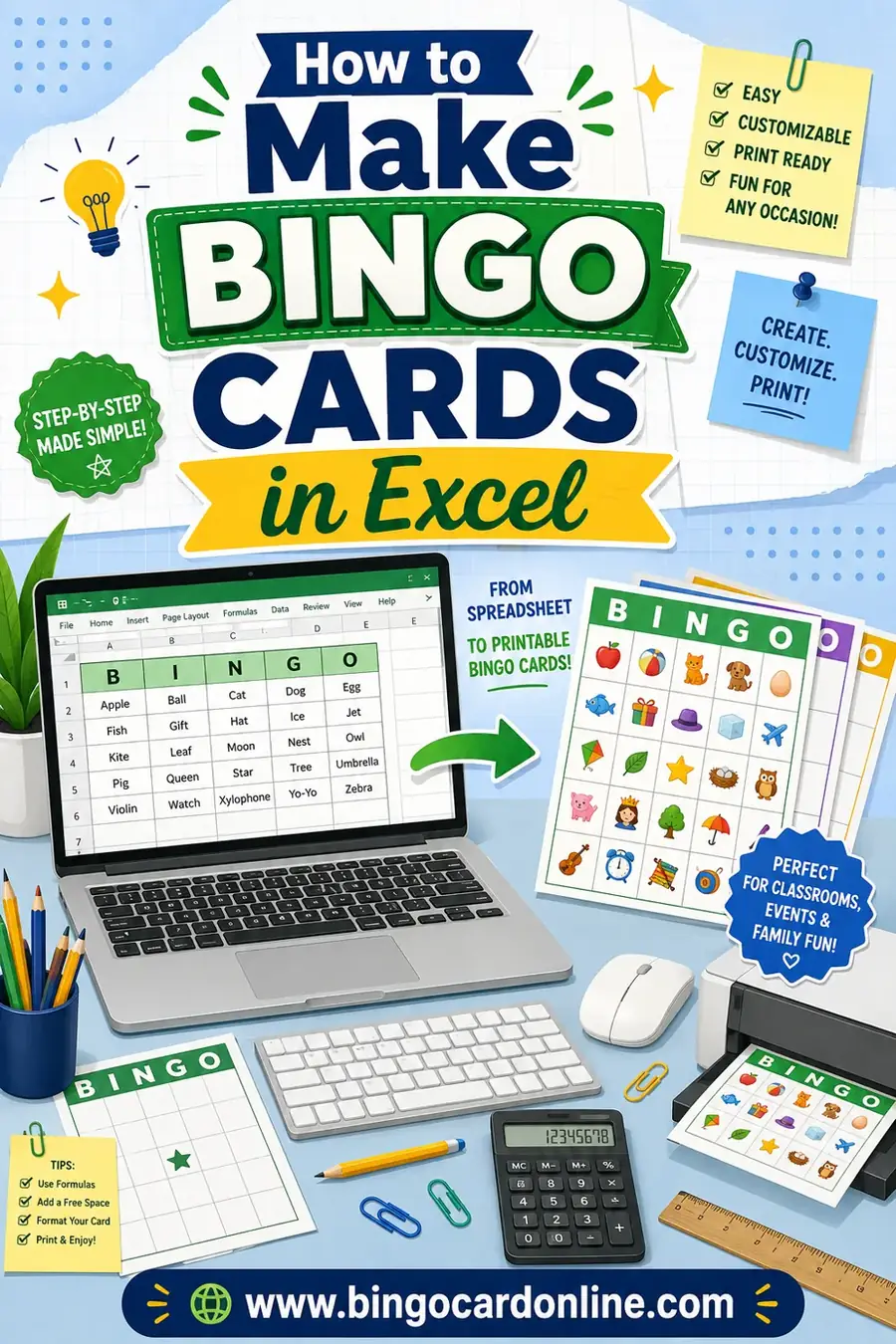
To make bingo cards in Excel, shape a block of cells into a square grid, type one bingo word into each cell, center the text, and add borders so it looks like a card. If you want shuffled cards, you can use the `RAND` and `INDEX` functions to pull random words from a list. It works, but it's fiddly. For a quick stack of truly unique cards, a free bingo card generator does the shuffling for you in seconds.
Want to skip the formulas? Open the free generator, paste in your word list, choose a grid size, and print. If you'd rather build it in Excel yourself, the full guide is right below.
Why Use Excel for Bingo Cards?
Excel has one big advantage over most tools: it can do math. That means you can use formulas to randomize words, so in theory each card comes out different. That's something Word can't do on its own.
But Excel also has a learning curve. Squaring up cells, writing formulas, and forcing a fresh shuffle all take a few steps. If you're comfortable in spreadsheets, it's a fun project. If you're not, it can feel like a lot of work for a party game.
So here's the honest version. Excel is great if you love spreadsheets and want full control. If you just need cards fast, there's a simpler path at the end of this guide.
What You'll Need
Keep it simple:
- A list of at least 24 bingo words for a 5x5 grid.
- Any version of Excel, including the free Excel Online in your browser. Google Sheets works almost the same way.
- A printer or PDF export for the finished cards.
No word list yet? Grab the free one further down. Copy and paste it straight in.
How to Make a Bingo Card in Excel: Step by Step
Here's the basic build, from blank sheet to a clean printable card.
Step 1: Make the cells square
Spreadsheet cells are wide rectangles by default. Bingo needs squares. To fix this:
- Select all the columns you'll use (say A through E).
- Right-click a column header and set the width to about 12.
- Select the rows, right-click, and set the row height to about 70.
Play with the numbers until the cells look square on screen. This is the single most important step for a card that looks right.
Step 2: Build the grid
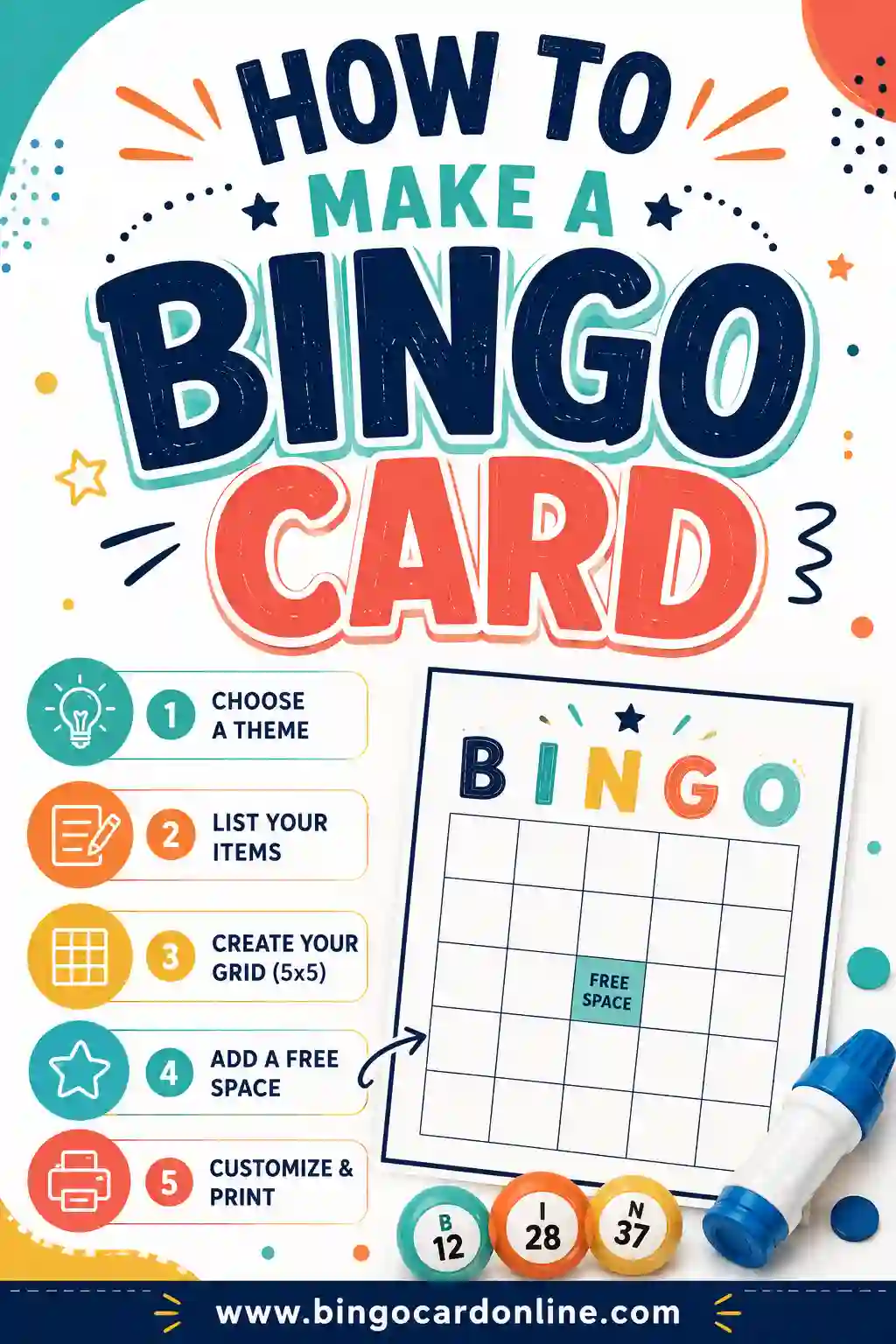
For a classic 5x5 card, you'll use a 5-by-5 block of cells, for example A1 to E5. For little kids, use 3x3. For a faster game, 4x4. That's your bingo grid.
Step 3: Add your words
Click into each cell and type one bingo word. Fill 24 cells for a 5x5 and leave the center cell (C3) for your free space. Type "FREE" there, or leave it blank and shade it.
Step 4: Center the text
Select the grid, then on the Home tab click "Center" for horizontal alignment and "Middle Align" for vertical. Turn on Wrap Text too, so longer words sit neatly inside each square instead of spilling over.
Step 5: Add borders
With the grid selected, open the borders menu on the Home tab and choose "All Borders." Now it actually looks like a bingo card instead of a spreadsheet. Bold the words or shade the free space if you want a little extra style.
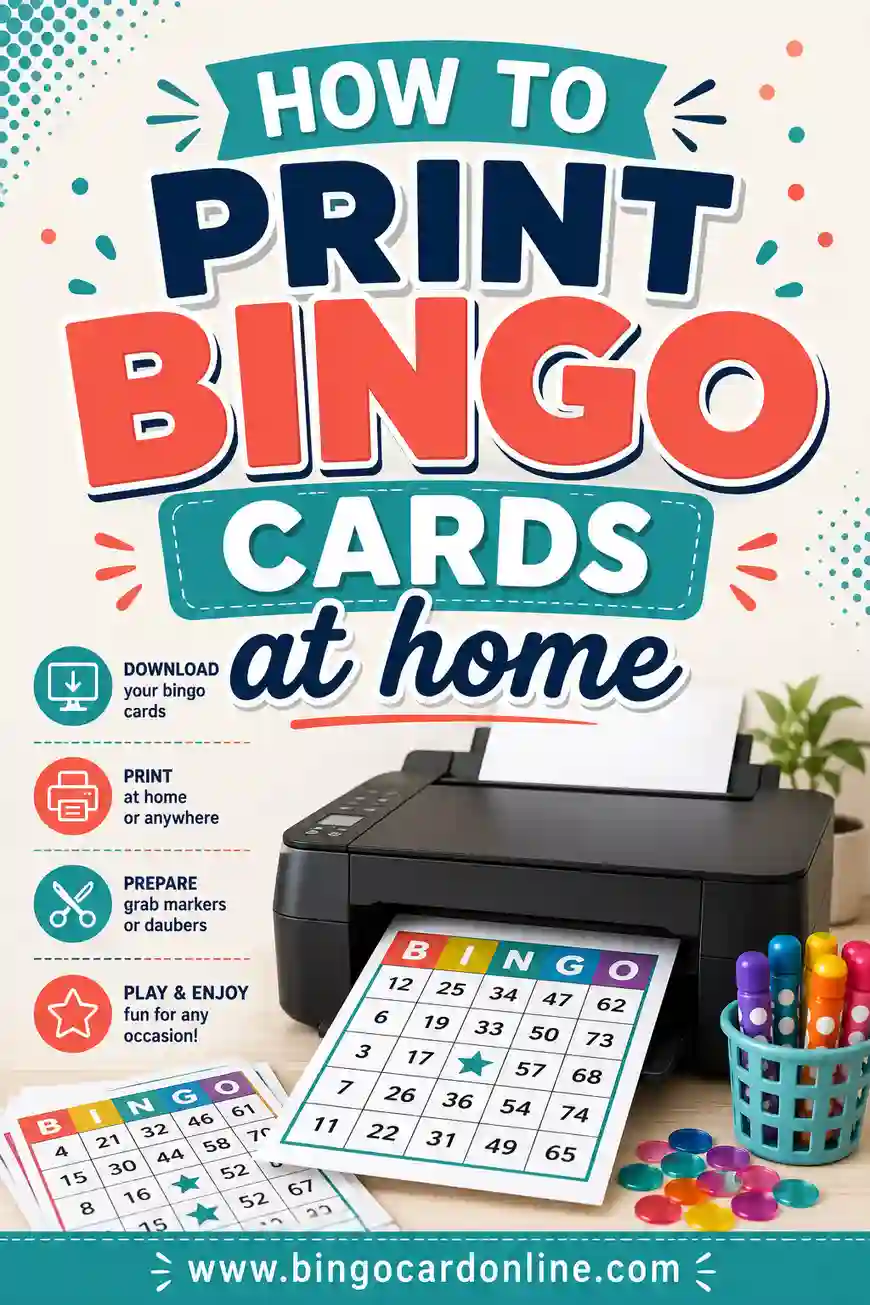
Step 6: Print or save
Go to File > Print and set it to fit on one page, or Save As a PDF. Print a single test card first to catch any margin issues before you run a batch.
Shuffling Words With Formulas (the Excel Way)
This is where Excel earns its keep. You can use formulas to pull random words from a list so each card differs. Here's the simple version:
- Paste your word list into a spare column, say column H, one word per row.
- Add a random number next to each word in column I using `=RAND()`.
- Sort by column I to scramble the order, or use `=INDEX($H$1:$H$30, RANDBETWEEN(1,30))` in each grid cell to pull a random word.
- Press F9 to recalculate and get a fresh shuffle for the next card.
It works, but there are gotchas. `RAND` and `RANDBETWEEN` can repeat the same word on one card, so you may see duplicates inside a single grid. Fixing that needs longer formulas with helper columns to filter out repeats. For most people, that's more spreadsheet wrangling than a game night is worth.
Make Many Unique Bingo Cards With RANDARRAY and SORTBY
If you have Microsoft 365, Excel 2021, or Excel for the web, there's a much cleaner way to shuffle. The newer dynamic array functions can scramble your whole word list in one step, so every word on a card is guaranteed to be different. No helper columns and no duplicate squares.
Step 1: Put your words in one column
Type or paste at least 25 words into H1:H30, one per cell. (You need 25 because the formula picks 25 words and then covers the center one with FREE.) More words means more variety between cards.
Step 2: Enter one formula for the whole card
Click the top-left cell of your formatted grid, say A1, and enter:
=IF(SEQUENCE(5,5)=13,"FREE",INDEX(SORTBY($H$1:$H$30,RANDARRAY(ROWS($H$1:$H$30))),SEQUENCE(5,5)))
Here's what each piece does:
RANDARRAYcreates a random number for every word in your list.SORTBYsorts the list by those random numbers, which shuffles it with no repeats.INDEX(..., SEQUENCE(5,5))takes the first 25 shuffled words and lays them out as a 5x5 block.IF(SEQUENCE(5,5)=13, "FREE", ...)swaps the 13th square, the center, for your free space.
The formula spills into all 25 cells of A1:E5 automatically. Make sure those cells are empty first, or Excel shows a #SPILL! error.
Step 3: Copy the card to make more
Copy the formatted grid, with the formula in its top-left cell, and paste it a few rows down, for example at A8, A15, and A22. Because the word list uses absolute references ($H$1:$H$30), each copy reads the same list but shuffles it independently, so every card on the sheet comes out different. Add a page break between cards if you want one card per page.
Step 4: Freeze the cards before printing
Random functions recalculate every time the sheet changes, so your cards will reshuffle when you edit anything. When you're happy with a set, select the cards, copy them, and use Paste Special > Values to lock the words in place. Press F9 on a fresh copy of the formula whenever you want a new set.
Other grid sizes
- 3x3:
=IF(SEQUENCE(3,3)=5,"FREE",INDEX(SORTBY($H$1:$H$30,RANDARRAY(ROWS($H$1:$H$30))),SEQUENCE(3,3))) - 4x4:
=INDEX(SORTBY($H$1:$H$30,RANDARRAY(ROWS($H$1:$H$30))),SEQUENCE(4,4))(a 4x4 grid has no center square, so there's no free space)
Not sure which size fits your group? See bingo card sizes: 3x3 vs 4x4 vs 5x5.
Older Excel: the RAND and RANK fallback
Excel 2019 and earlier don't have SORTBY, RANDARRAY, or SEQUENCE, but you can still make duplicate-free cards with two helper columns:
- Random numbers. In
I1, enter=RAND()and fill it down toI30, next to your 30 words. - Ranks. In
J1, enter=RANK(I1,$I$1:$I$30)and fill it down toJ30. This turns the random numbers into a shuffled order from 1 to 30 with no repeats. - Card cells. In
A1, enter=INDEX($H$1:$H$30,INDEX($J$1:$J$30,(ROW()-ROW($A$1))*5+COLUMN()-COLUMN($A$1)+1))and copy it across all 25 cells ofA1:E5. Each cell picks a different position in the shuffled order. - Free space. Overwrite the center cell,
C3, with FREE.
This version makes one shuffle per recalculation, so the routine is: print a card, press F9, print the next. To fit several different cards on one sheet, give each card its own pair of helper columns.
Troubleshooting common errors
| What you see | Why it happens | How to fix it |
|---|---|---|
#NAME? | Your version of Excel doesn't have the dynamic array functions. | Use the RAND and RANK fallback above, or Excel for the web. |
#SPILL! | Something is already typed in the cells the card needs. | Clear the 5x5 area under the formula. |
| Squares showing 0 | The list range includes empty cells, which get shuffled in with your words. | Fill every cell in the range, or change $H$1:$H$30 to match the exact length of your list. |
| Cards change every time you type | Random functions recalculate on every edit. | Copy the finished cards and use Paste Special > Values. |
| Same word twice on a card | The list itself has a repeated word. | Remove duplicates from the list with Data > Remove Duplicates. |
Bingo Number Cards (1-75) in Excel
Classic number bingo follows a fixed layout: each letter column draws from its own range of 15 numbers. Here's how the columns break down:
| Column | Number range | Numbers on each card |
|---|---|---|
| B | 1–15 | 5 |
| I | 16–30 | 5 |
| N | 31–45 | 4 plus the free space |
| G | 46–60 | 5 |
| O | 61–75 | 5 |
To build one in Excel 365 or 2021:
- Header row. Type B, I, N, G, and O into
A1throughE1. - B column. In
A2, enter=INDEX(SORTBY(SEQUENCE(15,1,1),RANDARRAY(15)),SEQUENCE(5)). This shuffles the numbers 1 to 15 and keeps five of them. - I, G, and O columns. Copy the same formula into
B2,D2, andE2, changing the start number inSEQUENCE(15,1,1)to 16, 46, and 61. - N column with the free space. In
C2, enter=IF(SEQUENCE(5)=3,"FREE",INDEX(SORTBY(SEQUENCE(15,1,31),RANDARRAY(15)),SEQUENCE(5))). - Format and freeze. Square the cells, center the numbers, add borders, then use Paste Special > Values once you have a set you like.
Need a calling list too? On a separate sheet, =SORTBY(SEQUENCE(75),RANDARRAY(75)) in A1 gives you all 75 numbers in a random call order. In B1, =CHOOSE(ROUNDUP(A1/15,0),"B","I","N","G","O")&A1 filled down to B75 adds the letter, so you can read out "B7" or "O64." For ready-made number cards, see number bingo 1-75 and bingo cards with numbers, and for calling tips see how to call a bingo game.
Google Sheets Bingo Card Version
Google Sheets is free and works in any browser. The steps are almost the same as in Excel, with a slightly different formula.
- Add your words. Paste at least 25 words into
H1:H30. - Square the cells. Select columns A to E, right-click, choose Resize columns, and set a width of about 100 pixels. Do the same for rows 1 to 5 with Resize rows and the same height.
- Enter the card formula in
A1:=ARRAYFORMULA(IF(SEQUENCE(5,5)=13,"FREE",WRAPROWS(ARRAY_CONSTRAIN(SORT($H$1:$H$30,RANDARRAY(30),TRUE),25,1),5))).SORTwithRANDARRAYshuffles the list,ARRAY_CONSTRAINkeeps 25 words, andWRAPROWSfolds them into five rows. If your list has a different length, change the 30 inRANDARRAY(30)to match it. - Style the card. Use Format > Alignment to center the words, turn on text wrapping, and add borders from the toolbar.
- Freeze and print. Sheets reshuffles random formulas whenever the sheet changes, so copy the card and use Paste special > Values only. Then select the card, open File > Print, choose to print the selected cells, and set the scale to fit the page.
To make more cards, paste the formula into another empty 5x5 area. Each copy shuffles on its own.
How to Print Multiple Different Bingo Cards From Excel
Pressing F9 and printing one card at a time gets old fast. For a big group, these two workflows are quicker.
Option 1: A full sheet of cards
Stack several copies of the RANDARRAY card down the sheet, leaving one or two blank rows between them. Use Page Layout > Breaks > Insert Page Break so each card starts on a new page, or fit two to four small cards per page. Freeze the values, then print the whole sheet in one go.
Option 2: Mail merge into Word
If you'd rather design the card in Word, let Excel supply the words and Word handle the layout:
- Build a data sheet. In row 1, type the headers
Sq1throughSq24across 24 columns. - Fill one card per row. In
A2, enter=INDEX(SORTBY(Words!$A$1:$A$30,RANDARRAY(30)),SEQUENCE(1,24)), assuming your list is in column A of a sheet named Words. It spills 24 different words across the row. Copy the formula intoA3,A4, and so on, one row for each card you need. - Freeze the data. Paste Special > Values so the words stop changing, then save the workbook.
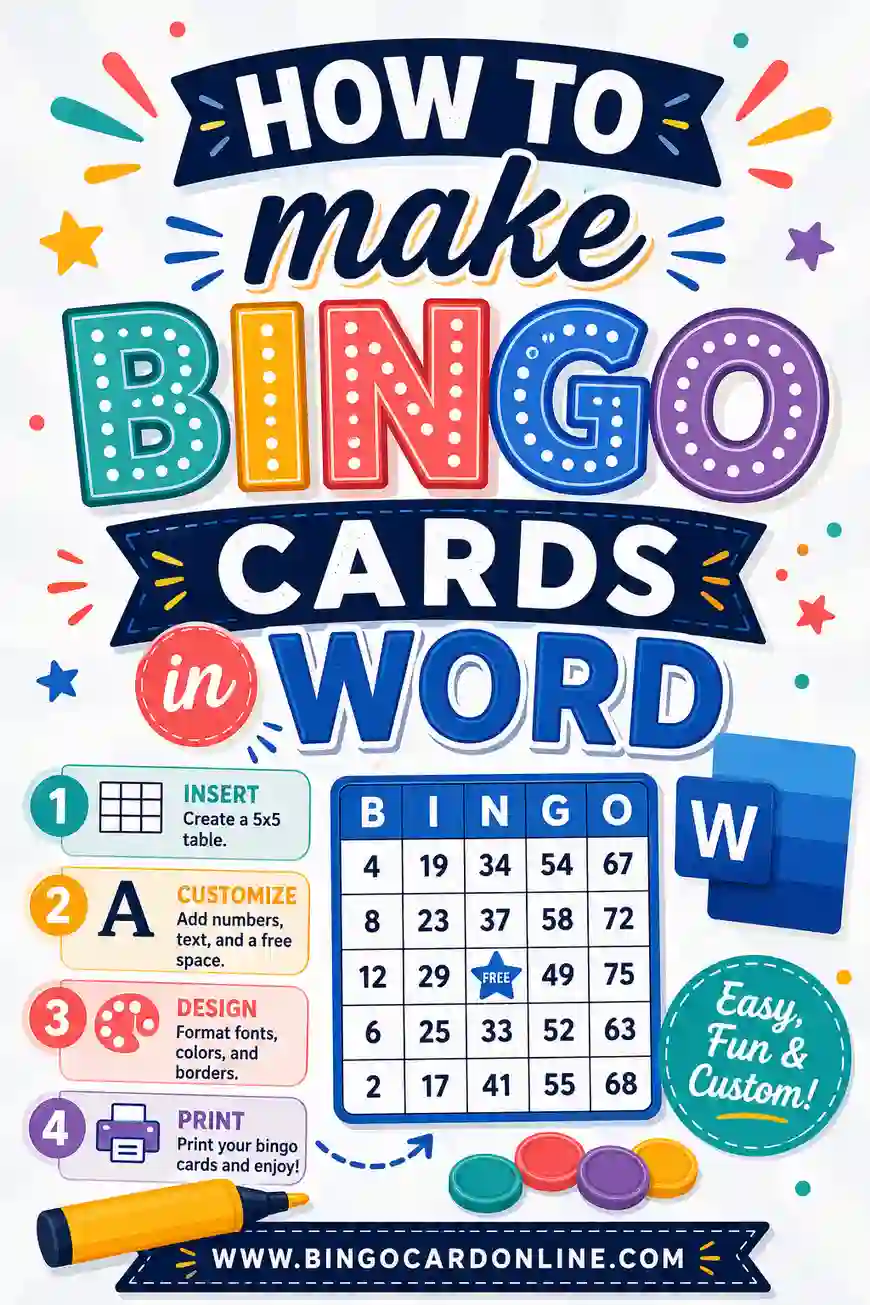
- Design the card in Word. Insert a 5x5 table, style it, and type FREE in the center cell.
- Connect the data. Go to Mailings > Start Mail Merge > Letters, then Select Recipients > Use an Existing List and choose your workbook.
- Insert the fields. Click each of the other 24 cells and use Insert Merge Field to place
Sq1toSq24. - Merge. Choose Finish & Merge > Edit Individual Documents. Word creates one page per row, so 30 rows give you 30 different cards ready to print.
For more on building the card layout itself, see how to make bingo cards in Word.
Set Up a Reusable Excel Bingo Template
Once you've built a card you like, save it as a template so the next game takes seconds:
- Use two sheets. Name one sheet Words and put your list in column A. Name the other Card and build the formatted grid there, with the formula pointing to
Words!$A$1:$A$30. - Add a title row. Put the event name above the grid and merge it across the five columns.
- Set the print area. Select the card and choose Page Layout > Print Area > Set Print Area, then set scaling to fit one page.
- Save as a template. Go to File > Save As and pick Excel Template (*.xltx). Each time you open it, you get a fresh copy. Paste in a new word list and print.
Want blank grids to fill in by hand instead? Grab our blank bingo cards.
Free Bingo Word List (Copy & Paste)
Here's a ready-to-use list of 30 general bingo squares. Pick any 24 for a 5x5 card, or 9 for a 3x3. Paste a column straight into Excel or into the generator.
| Nature | Food & Drink | Hobbies |
|---|---|---|
| Sunflower | Pancakes | Painting |
| Butterfly | Pizza slice | Knitting |
| Acorn | Ice cream | Gardening |
| Pinecone | Lemonade | Photography |
| Seashell | Popcorn | Fishing |
| Raindrop | Cupcake | Hiking |
| Mushroom | Sandwich | Reading |
| Maple leaf | Smoothie | Baking |
| Ladybug | Tacos | Cycling |
| Dandelion | Donut | Pottery |
Mix words across the columns so cards feel varied. For very young kids, choose easy-to-picture words like butterfly, pizza slice, and ladybug.
The Catch With Excel Bingo Cards
Even with formulas, Excel has limits for bingo:
- Duplicate squares. Basic random formulas can repeat a word on the same card unless you build extra logic to stop it.
- Manual re-shuffling. You press F9, then print, then F9 again for the next card. For 25 players, that's 25 reshuffles and 25 print jobs.
- Layout drift. It's easy to accidentally nudge a column width and throw off the whole grid.
None of this is a dealbreaker if you enjoy spreadsheets. But if you just want a printed stack of cards without babysitting formulas, there's an easier way.
A Faster Way: Use a Generator
A free bingo card generator skips all the formula work. You:
- Paste your word list once.
- Pick a grid size (3x3, 4x4, or 5x5).
- Choose how many cards you need.
- Print. Every card is unique, with no repeated squares inside a single grid.
It handles the randomizing and the no-duplicates rule for you, so you get a clean printable set in a couple of clicks. Plenty of people prototype an idea in Excel, then use the generator to actually produce the cards.
Printing Tips for Sharp Cards
Whichever tool you use, these help:
- Set print area and "fit to one page" so the card doesn't split across sheets.
- Print a test card to check margins before a full run.
- Use cardstock for cards that survive repeated game nights.
- Print in black and white to save ink. Bingo reads fine without color.
- Laminate or use sleeves so players mark with dry-erase markers and you wipe the cards clean.
Bingo Grid Sizes by Age
Match the grid to your players for the smoothest game.
| Age group | Grid size | Tips |
|---|---|---|
| Toddlers (2–4) | 3x3 | Use pictures, not words. Keep it short. |
| Kids (5–9) | 4x4 | Mix simple words and pictures. Small prizes help. |
| Tweens & teens | 5x5 | Add themed or pop-culture squares. |
| Adults | 5x5 | Try blackout rounds for a longer game. |
| Seniors | 4x4 | Larger print, fewer squares, clear fonts. |
Prefer a different tool? You can also build cards in Word, learn how to print bingo cards at home, or see how to guarantee unique, non-duplicate cards for a big crowd.
Frequently Asked Questions
Can I make bingo cards in Excel for free?
Yes. Excel's grid and formulas let you build cards at no cost, and Excel Online is free in any browser. Google Sheets works almost identically. The only downside is that shuffling cards with formulas takes setup, which the free generator handles for you.
How do I make Excel cells square for a bingo card?
Select your columns and set the width to about 12, then select your rows and set the height to about 70. Adjust until the cells look square on screen. Square cells are what make the grid look like a real bingo card.
How do I randomize words in Excel bingo cards?
Put your words in a column, add `=RAND()` beside each one, then sort by that random column to scramble the order. Or use `=INDEX(list, RANDBETWEEN(1, count))` in each cell. Press F9 to reshuffle for the next card, but watch for duplicate words on a single card.
Why are words repeating on my Excel bingo card?
Random formulas like `RANDBETWEEN` can pick the same word twice on one card. Stopping that needs extra helper columns and longer formulas. If you'd rather avoid the headache, a bingo generator blocks duplicates within a card automatically.
Is Excel or a generator better for bingo cards?
Excel is great if you love spreadsheets and want full control. A generator is faster and easier when you need many unique cards without managing formulas or duplicates. Many people design in Excel, then use the generator to print the final set.
Can I save my Excel bingo card as a PDF?
Yes. Go to File > Save As (or Export) and choose PDF. Set the print area and "fit to one page" first so your grid stays intact. A PDF prints the same on any computer, which is handy for copy shops.
How do I make random bingo cards in Excel without duplicates?
In Microsoft 365 or Excel 2021, shuffle your whole list with SORTBY and RANDARRAY, then lay out the first 25 words with INDEX and SEQUENCE(5,5). Because the list is shuffled rather than sampled, no word can appear twice on a card. In older versions, use a RAND column plus a RANK column to create a no-repeat order.
Is there a bingo template for Excel?
You can make your own in a few minutes. Build one formatted card with the shuffle formula, keep your word list on a separate sheet, and save the file as an Excel Template (*.xltx). Each time you open it, you get a fresh copy ready for a new word list. If you'd rather not build anything, the free generator works like a ready-made template.
How do I print multiple different bingo cards from Excel?
Either stack several copies of the shuffle formula on one sheet, with page breaks between them, and print the whole sheet, or put one card per row in a data sheet and mail merge it into a Word card design. Either way, paste the cards as values first so they don't reshuffle while you print.
How do I make number bingo cards (1-75) in Excel?
Give each letter its own range: B 1–15, I 16–30, N 31–45, G 46–60, and O 61–75. In each column, shuffle that range with SORTBY(SEQUENCE(15,1,start),RANDARRAY(15)) and keep five numbers with INDEX(..., SEQUENCE(5)). Put FREE in the middle of the N column.
Can I make bingo cards in Google Sheets?
Yes. Square the cells, paste your word list into a column, and use SORT with RANDARRAY to shuffle it, then WRAPROWS to arrange 25 words into a 5x5 grid. Copy and paste as values before printing, because Sheets reshuffles random formulas whenever the sheet changes.
Ready to Make Your Bingo Cards?
Excel is a fun way to build cards if you like formulas, but if you just want a stack of unique ones, let the free bingo card generator do the shuffling. Paste your list, pick a grid size, and print as many different cards as you need. No sign-up, no fee, and no duplicate squares, so your game is ready to go.