How to Make Bingo Cards in Google Docs (Step by Step)
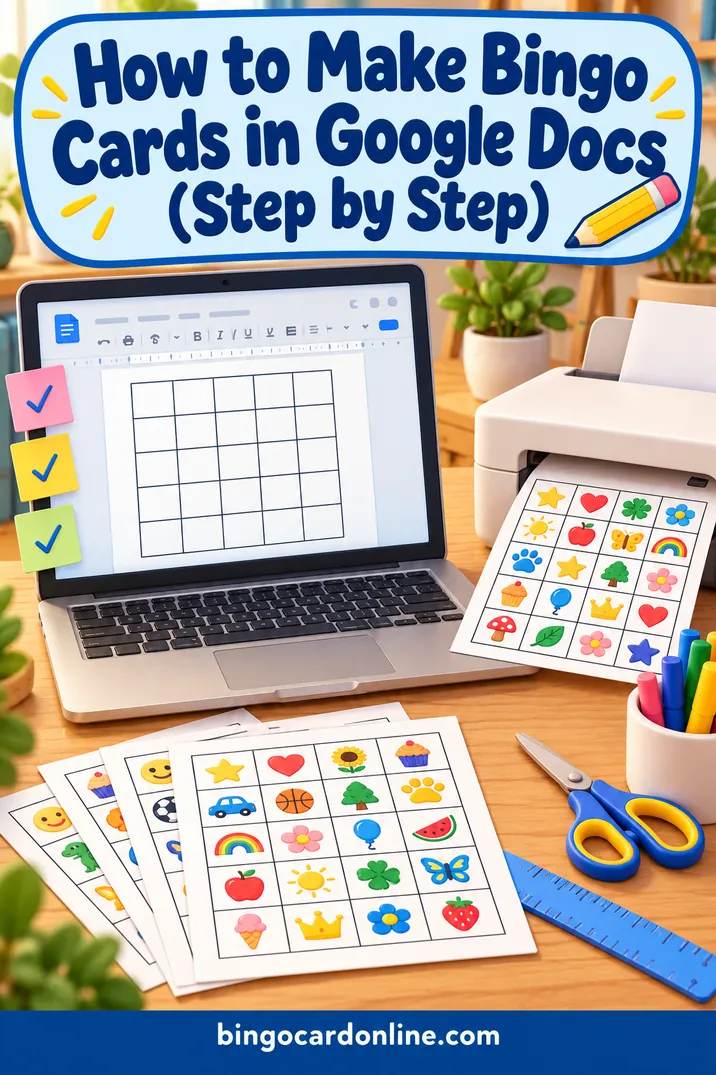
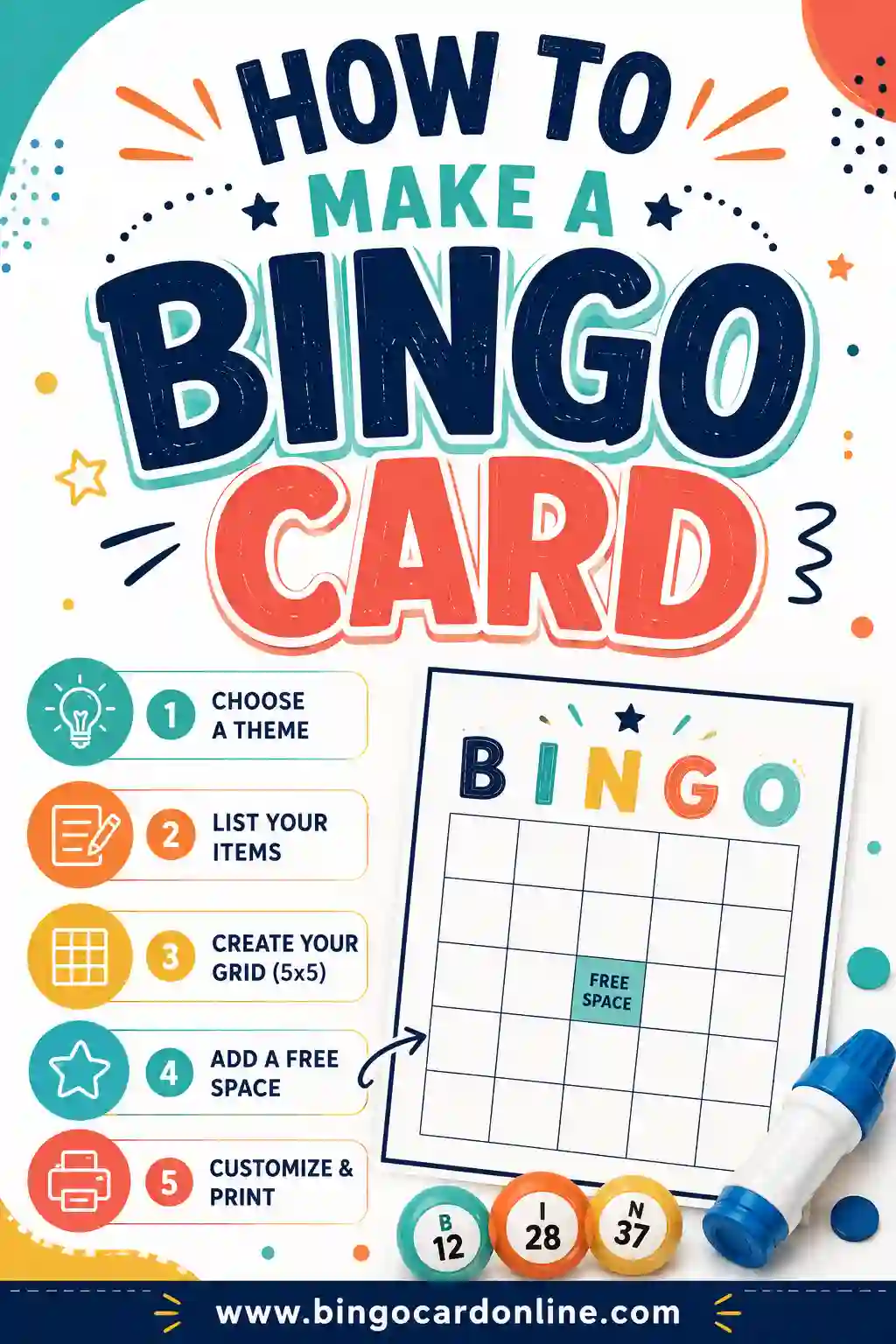
To learn how to make bingo cards in Google Docs, the short version is: insert a 5x5 table, set every row height and column width to the same size so the cells are square, add a header row for B-I-N-G-O, type your words or numbers, and mark the center as a free space. That gives you one clean card. The harder part is making many cards that are all different, and this guide covers both.
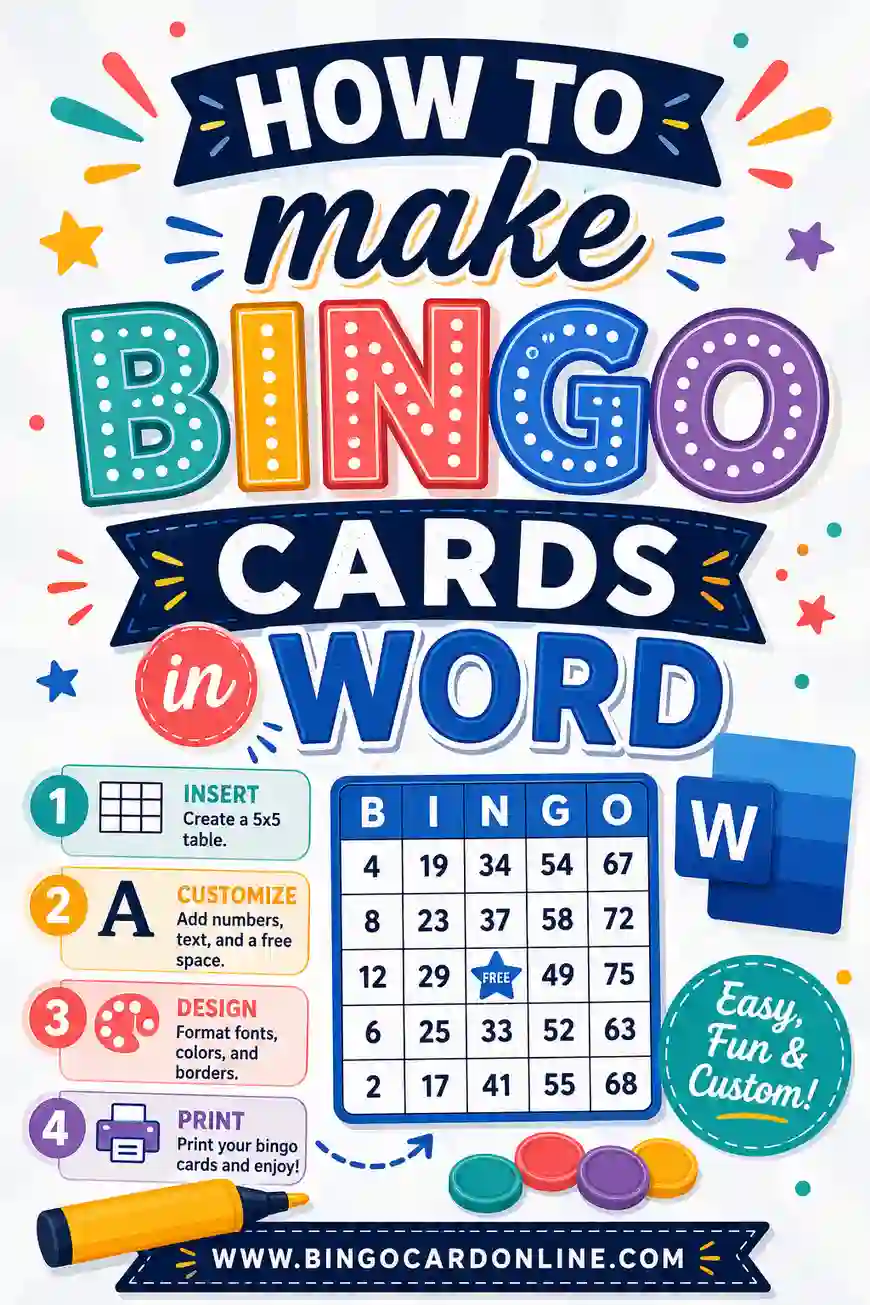
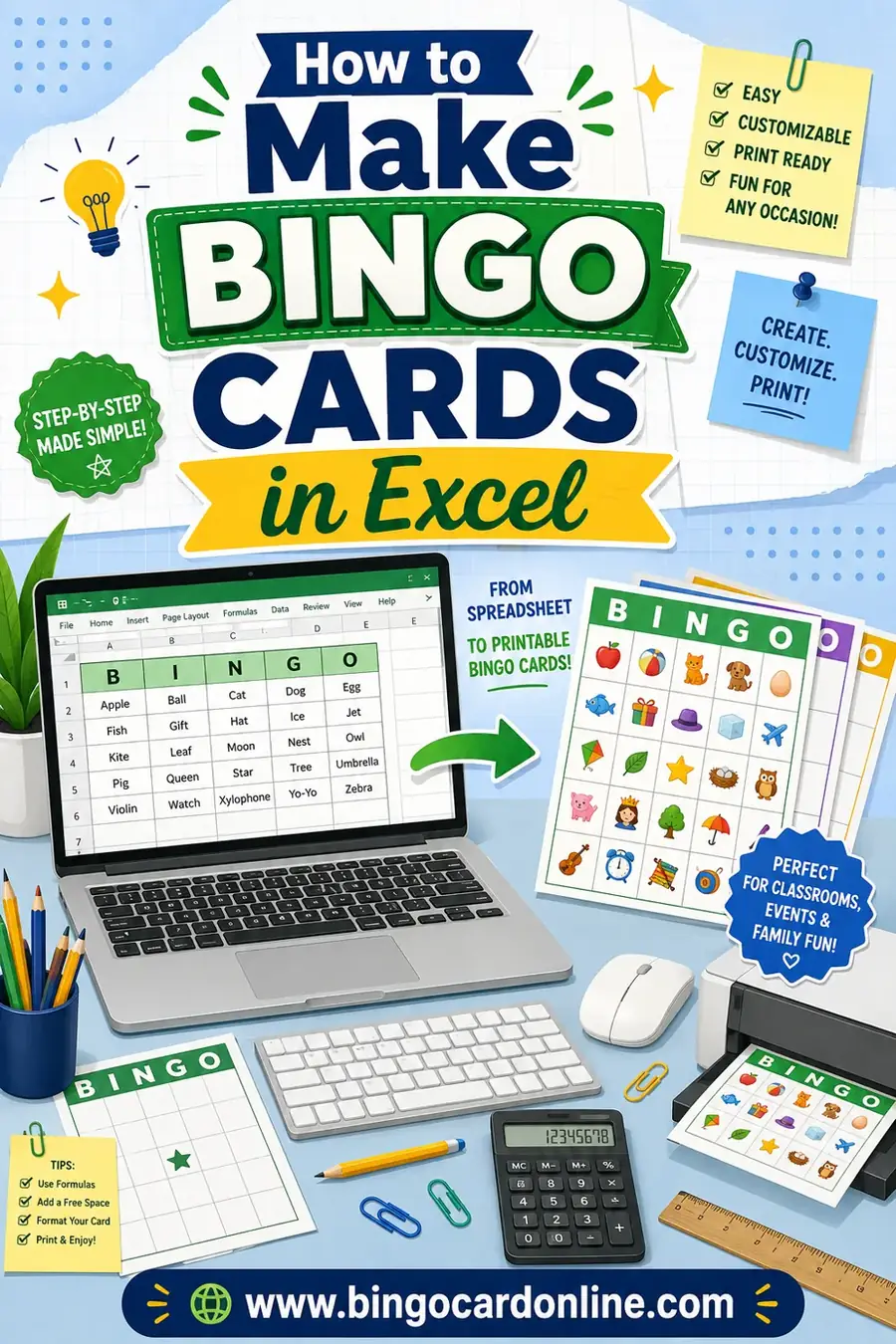
Below you will find the exact menu steps, the settings that keep your squares even, a fast way to shuffle words using Google Sheets, and when it makes more sense to switch to a bingo card generator instead. If you use Microsoft Word or Excel, the Word bingo card guide and the Excel bingo card guide follow the same shape for those programs.
What You Need Before You Start
- A Google account and access to Google Docs in a web browser.
- Your list of words, numbers or pictures. For a 5x5 card, plan on at least 24 items, plus extra if you want each card to be different.
- A printer, or a plan to share the cards as PDFs.
It helps to decide your card size first. A 5x5 card is the classic layout with 24 squares and a free center. A 4x4 card has 16 squares and no natural center. A 3x3 card has 9 squares and works well for young players and quick games. The steps below use 5x5, but they work the same for any size.
Step 1: Set Up the Page
Open a new blank document. Before you add a table, set the page so the card fits well.
- Click File, then Page setup.
- If you see a choice between Pages and Pageless, choose Pages. Pageless documents do not print in a predictable way.
- Set Orientation to Portrait.
- Set Paper size to Letter (8.5" x 11").
- Set all four Margins to 0.5 inches. Smaller margins give you room for bigger squares.
- Click OK.
With half-inch margins on letter paper, you have 7.5 inches of usable width and 10 inches of usable height. That number matters in Step 3.
📝 Ready to play? Turn these ideas into printable office bingo cards with the free generator: every card is unique, ready in seconds, no sign-up.
Make my bingo cards →Step 2: Insert the Table
- Click Insert, then Table.
- Move your mouse across the grid until it shows 5 x 6, then click. That is five columns and six rows: one header row for B-I-N-G-O and five rows for the card.
If you prefer a card without a letter header, choose 5 x 5 instead.
A blank table appears. It will look short and wide at first, because Google Docs sizes rows to the text inside them. The next step fixes that.
Step 3: Make the Squares Even
This is the step most people skip, and it is why homemade cards often look stretched.
- Click anywhere inside the table.
- Right-click and choose Table properties. A panel opens on the right side of the screen.
- Open the Columns section and set Column width to 1.4 inches.
- Open the Rows section and set Minimum row height to 1.4 inches.
- Open the Cell section and set Cell vertical alignment to Middle.
- Open the Alignment section and set Table alignment to Center.
Five columns at 1.4 inches each use 7 inches of the 7.5 inches you have, which leaves a little breathing room on each side. Six rows at 1.4 inches use 8.4 inches of height, which fits easily on the page.
Why "minimum" row height? Google Docs treats row height as a minimum. If you type a long phrase in a cell, the row grows to fit, and your card stops being square. Keep each square to a few words so this does not happen.
Make the header row shorter
The B-I-N-G-O row does not need to be as tall as the playing squares. Click in the first row, open Table properties, and set that row's minimum height to about 0.7 inches. Now the playing squares stay square and the header stays neat.
Step 4: Add B-I-N-G-O and Style the Text
- Click in the first header cell and type B. Press Tab to move to the next cell and type I, then N, G and O.
- Select the whole table by clicking and dragging across all cells.
- Press Ctrl + E (or Cmd + E on a Mac) to center the text in every cell.
- Select the header row and set the font size to about 36 and make it bold.
- Select the five playing rows and set the font size to about 18 for words, or 28 for numbers.
Add color and borders
With the header row selected, use the paint bucket icon in the toolbar (it appears when cells are selected) to give the header a background color. Use the border width button to make the outer border thicker, about 3 pt, so the card stands out when printed.
Keep colors light in the playing squares. Players need to see their marks clearly, and dark backgrounds use a lot of ink.
Step 5: Fill In the Squares
Click in the first playing square and type your first item. Press Tab to jump to the next cell. Tab moves left to right, then down to the next row, which makes typing a full card fast.
If you are making a number card, the classic 75-ball layout puts 1 to 15 under B, 16 to 30 under I, 31 to 45 under N, 46 to 60 under G, and 61 to 75 under O. Pick five numbers from each range for each column. The 1 to 75 number bingo page lists them in order if you want a reference while you type.
Add the free space
Click the center cell (the third row of the playing area, third column) and type FREE. Many people make it stand out with bold text, a star, or a different background color. You can also insert a small picture: click the cell, then Insert, Image, and choose an image from your computer or Drive. Drag the image's corner handle to shrink it so it fits the square.
Using pictures instead of words
Picture cards work the same way. Click a cell, insert an image, and resize it so it fits inside the 1.4-inch square. Set the image's text wrapping to In line so it stays inside the cell. Pictures make the file larger, so a card with 24 images may load slowly on older computers.
Step 6: Make More Cards
Now you have one card. Here is the easiest way to make a set.
- Select the whole table and press Ctrl + C (or Cmd + C) to copy it.
- Click just below the table and add a page break with Insert, Break, Page break, or press Ctrl + Enter.
- Press Ctrl + V to paste a copy of the card on the new page.
- Repeat for as many cards as you need.
The catch: every copy is the same card. If every player has the same words in the same places, everyone wins on the same call. You have to change each card by hand, and that is where most people get stuck.
The Shuffle Problem (and a Google Sheets Fix)
Google Docs does not have a built-in way to shuffle words in a table. You can retype each card in a new order, but that takes a long time and it is easy to make two cards that are almost the same.
A faster trick is to shuffle in Google Sheets, then paste into Docs.
- Open a new Google Sheet.
- Type your full word list in column A, one item per cell. For variety, use more items than you have squares, around 35 to 50 for a 5x5 card.
- Select the list, right-click, and choose Randomize range. The list shuffles into a new random order.
- Copy the first 24 items and arrange them into a 5x5 block (five rows of five cells) with a blank cell in the center for the free space. A quick way is to type the items into a 5x5 area on a second tab.
- Copy the 5x5 block from Sheets and paste it into Google Docs. Docs will ask whether to link the table to the spreadsheet. Choose Paste unlinked.
- Format the new table with the same settings from Step 3.
- Go back to Sheets, randomize again, and repeat for the next card.
This is the most reliable answer to how to make bingo cards in Google Docs that are all different, but it is still a lot of steps per card. For a party of eight it is fine. For a classroom of thirty or an event with a hundred guests, it adds up quickly.
Printing Your Bingo Cards
- Click File, then Print, or press Ctrl + P.
- In the print window, check that the scale is set to 100% or Default, so the squares do not shrink.
- Print one test page first and check that the card is centered and the borders are complete.
To share digital copies or print somewhere else later, use File, Download, PDF document. A PDF keeps your layout exactly the way it looks on screen.
Card stock gives you sturdier cards that last more than one game. If you plan to reuse the cards with daubers or markers, card stock is worth it. The blank bingo cards page also has empty templates you can print and fill in by hand when you are short on time.
A Faster Way: Use a Bingo Card Generator
Now that you know how to make bingo cards in Google Docs, here is the honest comparison. Docs is great when you want one or two custom cards and full control over every square. It is slow when you need a full set of different cards.
| Task | Google Docs | Bingo card generator |
|---|---|---|
| One custom card | Easy, about 15 minutes | Easy, about 2 minutes |
| Square, even cells | Manual settings | Automatic |
| 30 unique cards | Hours of shuffling | One click |
| Free space | Typed by hand | Built in, on or off |
| Pictures or emoji | Insert each image | Built-in emoji option |
| Printing several per page | Manual layout | Choose 1, 2 or 4 per page |
The free bingo card generator lets you paste your word list, choose a 3x3, 4x4 or 5x5 grid, and print up to 100 unique cards at once. Each card gets a different shuffle automatically, so you do not have to worry about duplicates. You can still use Google Docs to type and organize your word list, then paste it into the generator when you are ready.
For more general tips on card design, word lists and sizes, the how to make a bingo card guide covers the basics no matter which program you use.
How to Make Bingo Cards in Google Docs Without Common Mistakes
Skipping Table properties. Without set widths and heights, squares come out as wide rectangles. Always set both to the same number.
Long text in a cell. A long phrase makes its row taller and breaks the square shape. Keep each item to one to four words.
Pageless format. Pageless documents do not print as clean pages. Switch to Pages in Page setup before you begin.
Too few items. If your list is only 24 items, every shuffled card has the same words in different spots, and wins come close together. Add more items than you need.
Not testing a print. Screen view can hide small problems like a cut-off border. Always print one page first.
Linking the table to Sheets. If you paste a linked table and later change the spreadsheet, the card in Docs can change too. Choose Paste unlinked.
Your office bingo game is one click away. Add your own squares, choose a 3x3, 4x4 or 5x5 grid and print up to 100 unique cards free.
Open the free bingo card generator →FAQ
Does Google Docs have a bingo card template?
Google Docs does not include a dedicated bingo template in its standard template gallery, so learning how to make bingo cards in Google Docs means building the grid yourself. The easiest method is to build one yourself with a table, which takes about fifteen minutes the first time. After that, you can make a copy of the document with File, Make a copy, and reuse it.
How do I make the squares the same size in Google Docs?
Right-click the table, open Table properties, and set the column width and the minimum row height to the same value, such as 1.4 inches. Keep the text short so rows do not grow taller than the minimum.
How do I add a free space in the middle?
Type FREE in the center cell, which is the third row and third column of the playing area. You can make it bold, add a background color, or insert a small image to make it stand out.
How do I make every bingo card different in Google Docs?
Google Docs cannot shuffle a table by itself. You can retype each card in a new order, or shuffle your list in Google Sheets with Randomize range and paste each new order into Docs. For large sets, a bingo card generator that shuffles automatically is much faster.
Can I fit more than one card on a page in Google Docs?
Yes. Shrink the column widths and row heights to about 0.7 inches and you can stack two cards on one letter page. For four cards per page, you would need to place tables side by side, which Google Docs does not handle easily, so a generator with a cards-per-page setting is simpler.
Can I make picture bingo cards in Google Docs?
Yes. Click a cell, choose Insert, Image, and pick a picture. Resize it with the corner handles and set it to In line so it stays inside the square. Repeat for each cell.